Shopify Guides
Shopify Sections and Blocks Explained: What Store Owners Can Change Without a Developer
How Shopify sections and blocks work, what you can rearrange in the theme editor without code, the limits to know, and when a store really needs a developer.
Dev Artistry Hub6 min read
In this article — 10 sections
On a modern Shopify theme, a page is a stack of sections, and each section holds blocks. You can add, remove and reorder sections from the theme editor without touching code, on almost any page of your store. A developer is only needed when the section or block you want does not exist yet, or when the theme was built in a way that blocks editing.
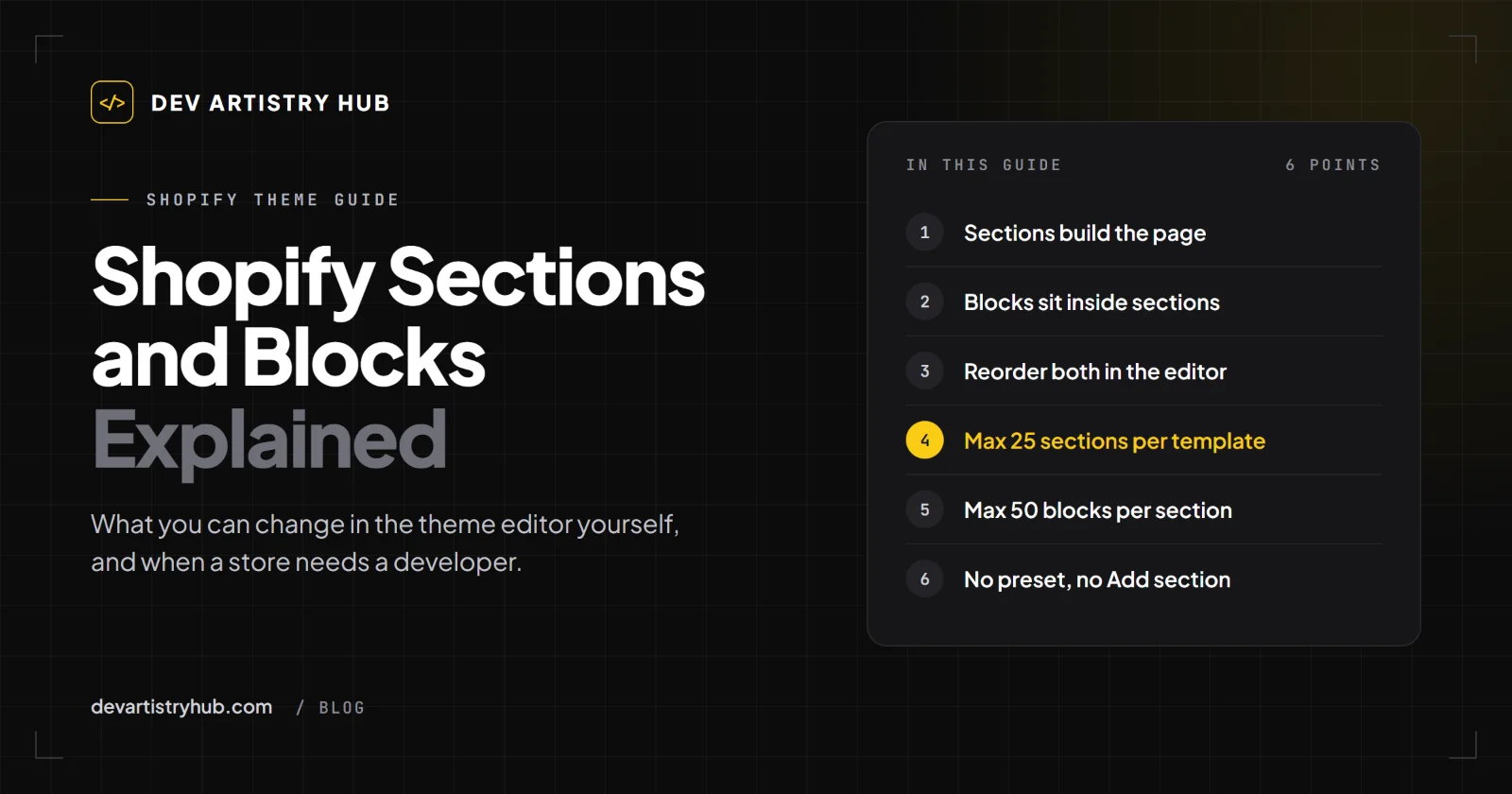
In short: sections are the big building pieces of a page, blocks are the smaller items inside a section, and the theme editor lets you move both around. The limits worth knowing are a ceiling of 25 sections per template and 50 blocks per section, and the fact that a section only appears in the "Add section" list if its developer gave it a preset.
What a Section Is
A section is a self-contained piece of a page: a hero banner, a featured collection, a row of testimonials, an image with text beside it. Each one has its own settings, such as colours, heading text and spacing, which you change in the theme editor.
Modern Shopify themes build pages from sections. Shopify's help centre says that sections can be added to any page of your online store, with the exception of the gift card and checkout pages. That means your product page, collection page, blog and custom pages can all be built and rearranged the same way as the home page.
What a Block Is
A block is a smaller item inside a section. In a "multicolumn" section, each column is a block. In a product section, the title, price, quantity selector and buy button are often blocks. In a slideshow, each slide is a block.
Blocks let you change what a section contains without changing the section itself. Add a fourth column, drag the price above the description, hide the vendor name: these are block changes, and you make them in the same editor.
Some sections have required blocks. Shopify's help centre notes that you can customise or hide them, but you cannot reorder or delete them.
What You Can Do Yourself in the Theme Editor
For a store on a current theme, these jobs are usually yours to do:
- Reorder sections. Drag a section by its handle in the editor sidebar, then click Save. If you drop one somewhere invalid, Shopify returns it to its original position.
- Add a section. Choose from the list of sections your theme offers and place it where you want it.
- Hide a section without deleting its settings, which is useful for seasonal banners.
- Edit text, images and links inside any section.
- Change the page layout on one template only. Your product page and your collection page each have their own list of sections, so a change on one does not affect the other.
- Use the preview inspector to reorder, hide or duplicate sections and blocks directly in the preview window. Shopify says it is available for all free themes from Shopify and activated by default.
If you are not sure whether your theme is up to date for this, open the theme editor and look at the sidebar. If you can add sections to your product and collection pages, you have it.
The Limits Worth Knowing
Shopify publishes the limits for themes on its theme limits page. The ones that matter to a store owner are:
| Limit | Value |
|---|---|
| Sections per template | 25 |
| Blocks per section | 50 (a developer can set it lower) |
| Section groups per theme | 20 |
| JSON templates per theme | 1,000 |
Shopify says that exceeding a limit produces an error in the theme editor or when the theme is saved. If you are close to 25 sections on one page, it is probably too long to be easy to read anyway.
Why Some Sections Do Not Show Up in "Add Section"
A common point of confusion is knowing a theme has a feature but not being able to add it to a certain page.
According to Shopify's developer documentation, a section or block file must define presets in its schema to be added to a template from the theme editor. A file without presets has to be added to the template's code by hand, and cannot be removed in the editor.
So if a section you expect is missing, the reason is usually one of these:
- The theme developer may have built it for one specific page only.
- It is a fixed part of the layout, like the header or footer.
- The theme is older and uses an earlier way of building pages.
None of these mean the store is broken. They mean the theme was built with certain decisions, and changing them is a small developer task rather than a rebuild.
Where Apps Fit In
Apps can add content to a page too. Shopify's documentation says that sections in JSON templates and section groups can support app blocks, so merchants can add app content without editing theme code. Reviews, product badges and upsell widgets are typical examples.
This is much cleaner than the old way, where an app asked for a snippet to be pasted into your theme files. The app's block sits in the editor like any other block, and you can move or remove it from there. App blocks also count toward the block limits above.
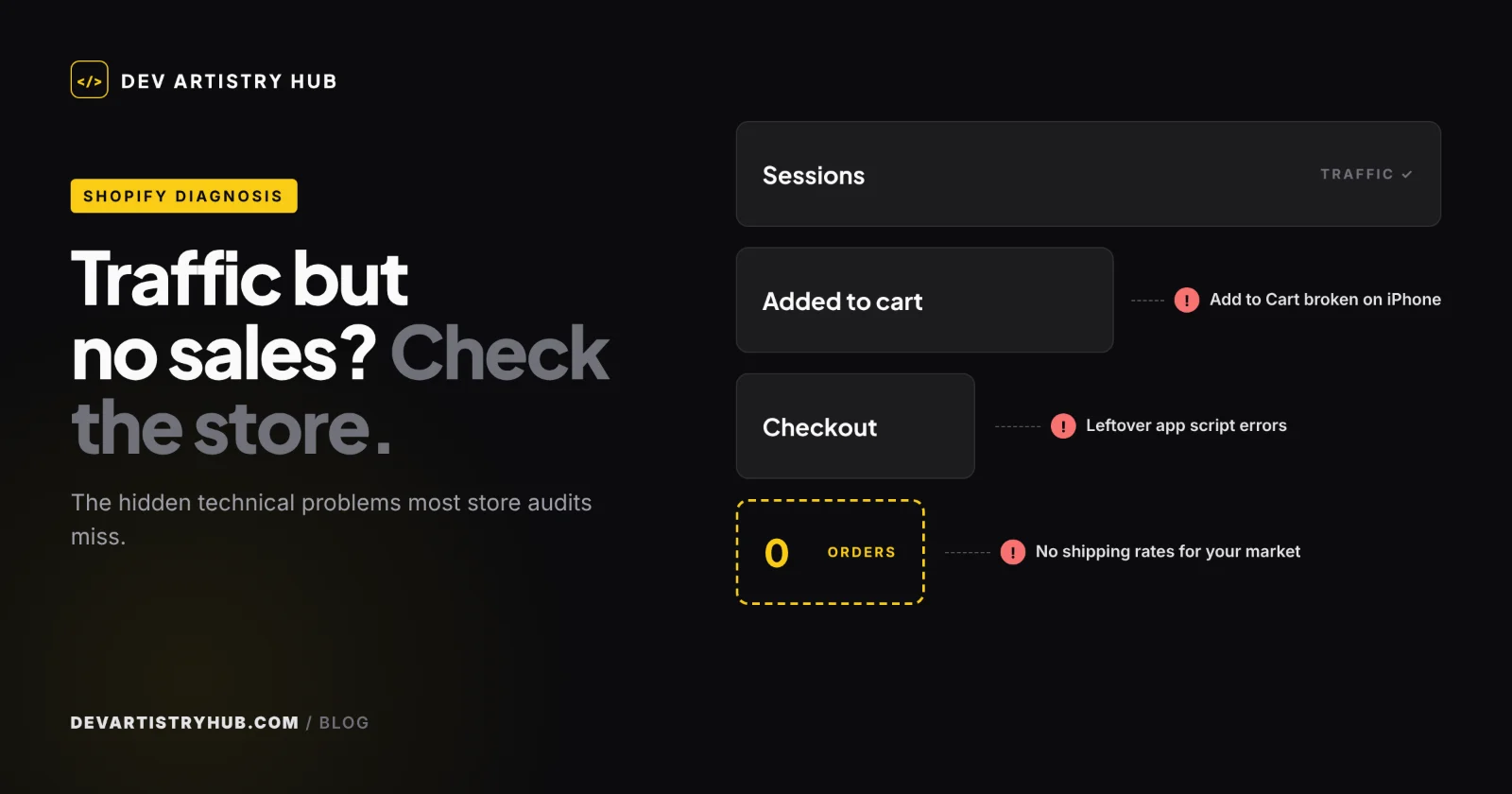
One practical warning. Even with app blocks, check the page after you install or remove an app. Leftover scripts from older installs can still slow a page or cause errors. Our guide on why a Shopify store gets traffic but no sales covers how to test for exactly that.
When You Do Need a Developer
The editor handles arrangement. It does not create new designs. You need a developer when:
- You want a section the theme does not have, such as a comparison table, a size guide that matches your brand, or a custom product builder.
- A section looks wrong on mobile and the theme's own settings cannot fix it.
- You have a finished design in Figma and want the store to match it exactly. That is a custom build, and it is usually quoted from the number of unique sections and templates in the design. See our Figma to Shopify service for how that works.
- The theme was heavily modified earlier and sections no longer behave as the editor suggests.
If you are unsure whether to keep adapting a ready-made theme or move to a custom one, read Shopify theme vs custom theme. The short version: adapt a theme as long as the editor gives you what you need, and consider a custom build when you keep hitting walls.
How to Brief a Developer Using This Vocabulary
Knowing the words saves time and money. Compare these two requests:
- "Make the home page look more modern."
- "Add a new section under the hero with three blocks, each with an image, a heading and a link. It should be addable from the editor on the home page and the collection page, and it should stack on mobile."
The second can be quoted and built. It also tells the developer you want an editable section, not a hard-coded one, which is the difference between changing it yourself next month and paying again.
A Short Checklist Before You Ask for Changes
- Open the theme editor on the page you want to change.
- Check whether the section already exists in the "Add section" list.
- Try reordering and hiding sections to see if the layout you want is already possible.
- Check the page on a phone, because a section that looks right on desktop can still break on mobile.
- If the section does not exist, write down what it should contain, which pages it should appear on, and whether you want to edit it yourself afterwards.
Final Takeaway
Sections and blocks are why you can run most of a Shopify store without a developer. Learn what the editor can do, know the limits, and ask for new sections in terms of blocks and pages. You will spend less, and the result will stay editable.
If you need a section your theme does not have, or a store built from a Figma design, Dev Artistry Hub can scope it clearly before any code is written. See our Shopify development services, or tell us what you need.
- #Shopify
- #Themes
- #Theme Editor