Shopify Guides
Shopify Store Getting Traffic but No Sales? The Hidden Store Problems Most Audits Miss
Visitors but no orders? Before you change your ads, check the store: broken add to cart, sold-out default variants, leftover app code and checkout settings.
Dev Artistry Hub10 min read
In this article — 7 sections
The sessions are climbing in Shopify Analytics. The ad spend is leaving your account every day. The orders page is still empty.
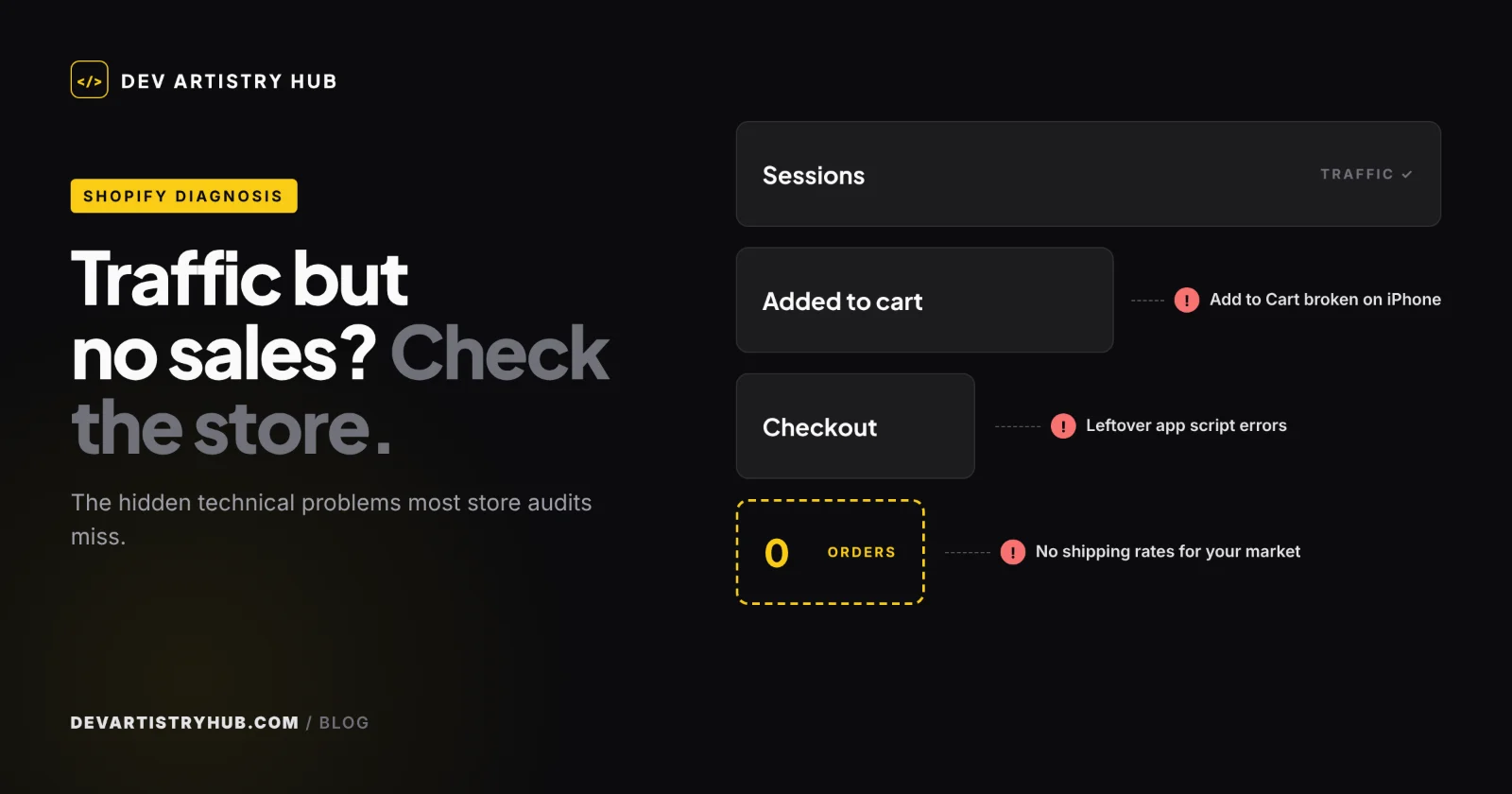
Most advice for this problem follows the same script: add reviews, improve your photos, show trust badges, rethink your pricing. That advice is often right. But it assumes the store itself works. Sometimes it doesn’t. An Add to Cart button that fails on iPhones, a product that opens on a sold-out size, or a checkout that can’t calculate shipping for half your customers will block sales no matter how good the photos are — and none of them show up in a marketing audit.
The short version: first confirm your traffic is real and that you have enough sessions to judge. Then use Shopify’s conversion funnel to find the exact step where people drop off. If the drop is sudden and severe, test the technical problems below before you spend another dollar on ads.
First, Make Sure the Numbers Mean What They Seem To
Before you change your theme, your prices or your ads, check whether there is a real conversion problem to solve.
Are those sessions real buyers?
A session is a visit, not a shopper. Bot traffic, your own team’s visits, accidental ad clicks and visitors from countries you don’t ship to all count as sessions. In Shopify Analytics, look at sessions by referrer and by location. If a large share comes from one social platform, an unfamiliar referrer or a country you can’t sell to, the store may be fine — the traffic isn’t.
Have you had enough sessions to judge?
Small numbers lie. Here is the maths: if your store normally converts 1.5% of sessions, the chance of getting zero orders from 100 sessions purely by bad luck is about 22%. At 300 sessions, that chance falls to about 1%.
So 100 sessions without a sale is not evidence of a broken store. A few hundred sessions of targeted traffic without a single order is.
Read the funnel Shopify already gives you
Shopify’s Conversion rate breakdown report (Analytics > Reports) splits visits into three steps: sessions with cart additions, sessions that reached checkout, and sessions that completed checkout. Each step is shown as a share of all sessions. Note that “reached checkout” only counts sessions where the shopper actually typed or clicked inside checkout.
Where the numbers fall tells you where to look:
| Where the drop happens | What it usually points to | What to check first |
|---|---|---|
| Very few sessions add to cart | Product page, offer or traffic quality | Add to Cart button, default variant, price display, page speed on mobile |
| Many add to cart, few reach checkout | The cart | Cart drawer bugs, surprise shipping costs, app conflicts, checkout button visibility |
| Many reach checkout, few complete | The checkout | Shipping rates, payment methods, discount codes, total cost shown late |
| Add-to-cart rate dropped suddenly | A recent change | New app, theme update, edited code, expired discount |
A sudden drop after a change is the strongest sign of a technical fault. Shoppers’ preferences don’t change overnight; code does.
The Hidden Problems Most Audits Miss
These are the faults a developer checks when the funnel looks wrong. Each one can cut sales sharply while the store looks perfectly normal on the owner’s laptop.
1. Add to Cart fails on some phones
The button looks fine. Tapping it does nothing, or the cart drawer opens empty.
This usually happens when two pieces of JavaScript fight over the cart: an upsell app, a sticky add-to-cart bar and the theme’s own cart drawer all trying to handle the same click. It can also be simpler — a cookie banner or chat widget sitting on top of the button on smaller screens.
How to check: add a product to cart on a real iPhone in Safari and a real Android phone in Chrome, in a private window, logged out. Try the product page and any quick-add buttons on collection pages. On desktop, open the browser console (F12) and watch for red errors when you click Add to Cart.
2. A sold-out variant is selected by default
Most modern themes open a product on the first available variant. But ads, shopping feeds and email links often point to a specific variant URL. When that size or colour sells out, every visitor from that ad lands on a page that says “Sold out” — even though other sizes are in stock.
Related problems: variant pickers that don’t update the price or image, inventory that syncs incorrectly from another system, and products where only one unpopular variant is available.
How to check: open your top ad and feed links exactly as a customer would, and make sure the Add to Cart button is active. Review inventory for the products that receive the most traffic.
3. Leftover code from apps you removed
When older apps were installed, many added scripts directly into theme files such as theme.liquid. Uninstalling the app usually removes its code, but stray lines can be left behind. Most are harmless. Some still load scripts that throw errors or slow every page.
Newer apps built with app blocks and app embeds are easier to manage: you can switch them off in the theme editor instead of editing code.
How to check: duplicate your theme first. Then search the theme code for the names of apps you no longer use, and check the console for errors from scripts you don’t recognise. If you are not comfortable editing Liquid, this is a job for a developer.
4. The mobile page is slower than you think
Your store feels fast on office Wi-Fi. A shopper on mobile data may wait several seconds for the product image and button.
Google’s Core Web Vitals give useful targets: Largest Contentful Paint within 2.5 seconds, Interaction to Next Paint under 200 milliseconds and Cumulative Layout Shift under 0.1. Layout shift matters more than most owners realise — if a late-loading banner pushes the page down just as someone taps, they hit the wrong thing.
How to check: run your top product page through PageSpeed Insights and look at the mobile results, not desktop. Common causes are oversized images, autoplay videos in the hero and too many app scripts.
5. Checkout settings block the order
Baymard Institute’s research on why shoppers abandon checkout (excluding people who were just browsing) puts extra costs that are too high at the top, at 40%. It also lists website errors or crashes (17%), not being able to see the total cost up front (12%), card declines (10%) and too few payment methods (9%).
Several of these come down to store settings rather than marketing:
- Missing shipping zones. If you advertise to a country with no shipping rate set up, customers there cannot complete checkout.
- Payment methods not active. A gateway that was never fully set up, or payment options that don’t suit your customers’ country.
- Shipping costs revealed too late. No shipping information on the product page or cart, so the total comes as a surprise.
- Broken discount codes. An ad promises a code that has expired or has the wrong conditions.
How to check: place a real order on your phone from each main country you sell to, using a cheap product, then refund it.
6. Demo content and broken pages quietly kill trust
These are not bugs in the code, but they are easy to miss after a theme setup: placeholder text from the theme demo, empty policy pages, menu links that lead to 404 pages, a contact page with no real details, or product images that fail to load on collection pages. One of them is enough to make a careful shopper leave.
How to check: click every menu and footer link on mobile. Search the theme for demo text. Read your policy pages as if you were a first-time customer.
7. Tracking hides where the leak really is
If your ad pixel fires its purchase event twice, or not at all, the ad platform optimises for the wrong thing and your reports stop matching reality. Shopify itself notes that sessions that completed checkout and the number of orders can differ, so compare like with like.
How to check: treat your Shopify orders as the source of truth. Compare them with what each ad platform reports for the same period, and test the purchase event with the platform’s own testing tools.
A 30-Minute Self-Check Before You Change Anything
Run through this in order. Stop when you find a clear fault — fix that first, then measure again.
- Open the Conversion rate breakdown report and note which step drops sharply.
- Check sessions by referrer and location for traffic you can’t sell to.
- On a real phone, open your top ad link and add the product to cart.
- Open the cart and go to checkout. Note any surprise costs.
- Enter a delivery address in your main market and confirm shipping rates appear.
- Check that your main payment methods are available.
- Run your top product page through PageSpeed Insights on mobile.
- Open the browser console on desktop and look for errors on the product and cart pages.
- List every app installed or removed in the last 60 days.
- Compare Shopify orders with what your ad platform reports.
If every step passes, your store is probably not the bottleneck.
When the Store Isn’t the Problem
Sometimes the store works perfectly. Then the issue is usually one of these:
- The traffic doesn’t match the product. Broad social audiences click out of curiosity, not intent.
- The offer isn’t strong enough. Price, shipping time or product positioning don’t beat the alternatives shoppers can find in one search.
- The product page doesn’t answer buying questions. Size, materials, delivery date, returns.
- The brand isn’t trusted yet. New stores with no reviews need more reassurance than established ones.
A developer can’t fix these alone, and an honest one will tell you so. But it is worth ruling out the technical faults first, because they are faster and cheaper to fix than a new ad strategy.
When to Bring in a Shopify Developer
Ask for help when:
- The add-to-cart rate dropped suddenly after a theme update or app change.
- The browser console shows errors you can’t trace.
- Add to Cart or the cart drawer behaves differently on different phones.
- You suspect leftover app code but don’t want to edit theme files yourself.
- Your mobile Core Web Vitals fail and you don’t know which scripts are responsible.
Frequently Asked Questions
Why is my Shopify store getting visitors but no orders?
It is usually one of three things: the traffic isn’t ready to buy, the offer isn’t convincing, or something on the store is blocking the purchase. Shopify’s Conversion rate breakdown report shows which step loses people, which tells you where to look.
How many sessions should I get before I worry about no sales?
It depends on your expected conversion rate. At 1.5%, zero orders from 100 sessions happens by chance about 22% of the time, but from 300 sessions only about 1% of the time. A few hundred targeted sessions without a sale is a real signal.
Can a Shopify app stop people from buying?
Yes. Apps that change the product page, cart or checkout flow can conflict with your theme or with each other. If sales dropped after installing or removing an app, test the store with that app disabled or its code removed on a duplicate theme.
Does page speed really affect Shopify sales?
It can, especially on mobile. Slow-loading images and layout shifts make the page harder to use. Google’s Core Web Vitals are a good benchmark for what “fast enough” means.
Should I keep running ads if I’m not getting sales?
If you have enough sessions to be confident the store isn’t converting, pause or reduce spend while you check the funnel and the technical issues above. Sending more traffic to a broken step only increases the cost of the problem.
Final Takeaway
An empty orders page on a busy store tells you something is wrong — not what. Confirm the traffic is real, use Shopify’s funnel to find the step that leaks, and test the store the way a customer would — on a phone, from an ad link, all the way through checkout. Fix what’s broken before you change anything else. Very often, the reason a Shopify store gets traffic but no sales is hiding in plain sight.
If your store is getting visits but the funnel looks wrong, Dev Artistry Hub can review it for the technical problems in this guide and tell you plainly what is worth fixing. See our Shopify development services, read our guide to the cost to hire a Shopify developer if you’d rather compare options first, or request a store review.
- #Shopify
- #Conversion
- #Troubleshooting