Figma Guides
Figma to WordPress: Plugins vs Hand-Built — An Honest Comparison
Converter plugin, Elementor rebuild or hand-coded theme? Compare the three ways to turn a Figma design into WordPress on quality, speed, SEO, cost and editing.
Dev Artistry Hub7 min read
In this article — 11 sections
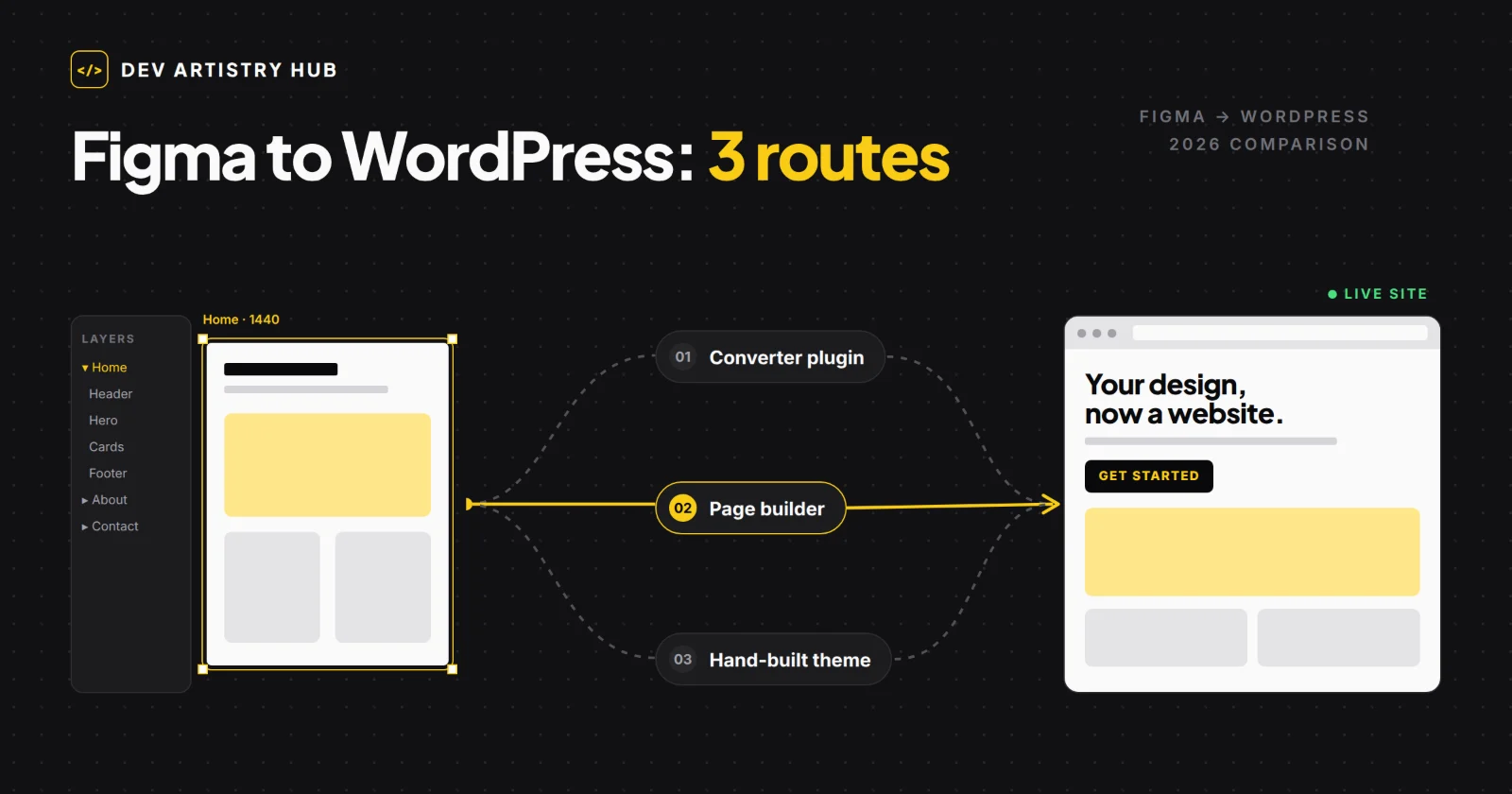
- The Three Ways to Convert Figma to WordPress
- Figma to WordPress Methods Compared
- What Converter Plugins Do Well — and Where They Break
- The Page Builder Rebuild
- The Hand-Built Custom Theme
- Cost and Timeline
- SEO, Performance and Accessibility
- Prepare Your Figma File for Any Method
- Which Route Should You Choose?
- Frequently Asked Questions
- Conclusion: Use Tools for Speed, People for Quality
Quick answer: There are three ways to turn a Figma design into WordPress: a converter plugin, a manual rebuild in a page builder such as Elementor, or a hand-coded custom theme. Converter plugins are fastest and work well for clean, well-structured designs, but the output usually needs developer cleanup. A page-builder rebuild balances speed with easy editing. A hand-built theme takes longest but gives the cleanest code, best performance and most control.
Figma to WordPress tools have improved a lot. Several converters now output native Elementor, Gutenberg or Bricks layouts rather than images or iframes, and some use AI to interpret the design. For the right project, they can save days of work.
But a design file and a production website are not the same thing. A live site has to be responsive on every screen, accessible, fast, easy for your team to edit and structured for search engines. This guide compares the three routes honestly, explains where each one shines and where it struggles, and helps you choose the right approach for your project.
The Three Ways to Convert Figma to WordPress
1. Converter Plugins (Including AI Converters)
A Figma plugin reads your frames and layers, then exports them into a WordPress format — usually Elementor JSON, or native Gutenberg or Bricks blocks. A companion WordPress plugin often imports the result. Tools such as UiChemy, listed in the WordPress.org plugin directory, convert Figma designs into editable Elementor, Gutenberg and Bricks layouts, and several converters in the Figma Community now use AI to interpret the design.
2. Page Builder Rebuild
A developer recreates the design by hand inside a page builder such as Elementor, Bricks or the block editor. Global colours, fonts and spacing are set up first, then each section is built with native widgets and containers, matching the Figma file.
3. Hand-Built Custom Theme
A developer writes a custom WordPress theme — a classic PHP theme or a modern block theme — using HTML, CSS, JavaScript and PHP. Editable areas are built with the block editor, custom blocks or Advanced Custom Fields, so content stays manageable without touching code.
Figma to WordPress Methods Compared
| Factor | Converter plugin | Page builder rebuild | Hand-built theme |
|---|---|---|---|
| Speed to first draft | Fastest — minutes to hours | Moderate — days | Slowest — days to weeks |
| Design accuracy | Good on clean Auto Layout designs; weaker on complex layouts | High; a developer interprets intent | Highest; built exactly to spec |
| Code quality | Variable; often extra wrappers and styles | Builder markup; reasonable when built carefully | Cleanest; only what is needed |
| Performance | Depends on output and cleanup | Good with careful setup | Best potential |
| Responsiveness | Often needs manual fixes for tablet and mobile | Built and tested per breakpoint | Built and tested per breakpoint |
| Editing for your team | Easy, in the builder | Easy, in the builder | Easy if built with blocks or ACF; layout changes need a developer |
| Best for | Simple pages, prototypes, quick landing pages | Most business sites and marketing pages | Performance-critical, complex or long-term sites |
What Converter Plugins Do Well — and Where They Break
Converter plugins are worth taking seriously. Used on a well-prepared design, they can turn hours of repetitive layout work into minutes, and their output is editable in the builder rather than locked away.
Where they tend to struggle:
- Messy layer structure. Designs without Auto Layout, with absolutely positioned elements or overlapping decorative shapes, usually convert poorly. Several converter vendors acknowledge this themselves.
- Responsive behaviour. Figma frames are usually designed at fixed widths. Tablet and mobile layouts often need manual adjustment after import.
- Semantic structure. Headings may come through with the wrong levels, or text as generic containers — which matters for SEO and accessibility.
- Extra markup. Automated output can add nested containers and inline styles that increase page weight.
- Interactions and logic. Forms, dynamic content, filtering, animations and integrations still have to be built.
The practical takeaway: treat a converter as a fast first draft, not a finished website. Budget developer time to clean up structure, responsiveness and performance.
The Page Builder Rebuild
For most business websites, rebuilding the design by hand in Elementor or another builder is the sweet spot. A developer sets up global styles that mirror your Figma design tokens, builds reusable sections, and tests every breakpoint. You get an accurate result that your team can edit visually.
The trade-off is some extra page weight compared with a hand-coded theme, and dependence on the builder and its add-ons. With a lean setup and good hosting, that is rarely a problem for marketing and business sites.
The Hand-Built Custom Theme
Hand-building takes the longest, but it gives you full control over code, structure and performance. It makes sense when:
- Page speed and Core Web Vitals are a competitive priority.
- The design includes complex interactions, custom post types or dynamic content.
- You want a long-term site without dependence on a page builder.
- Your team mainly edits content, not layouts.
Modern block themes make this more owner-friendly than it used to be: you can still edit content in the block editor, with design rules built into the theme.
Cost and Timeline
- Converter plugin: low tool cost and the fastest first draft, plus developer time for cleanup, responsive fixes and functionality.
- Page builder rebuild: moderate cost and timeline; usually the best value for business sites.
- Hand-built theme: the highest upfront cost and longest timeline, with the lowest long-term overhead for performance-critical sites.
The biggest cost driver on every route is not the method — it is how well prepared the Figma file is. For typical market prices, see our guide to WordPress developer cost.
SEO, Performance and Accessibility
Whichever method you use, check these before launch:
- One H1 per page and a logical heading order.
- Real text, not text exported as images.
- Optimized, correctly sized images in modern formats.
- Alt text on meaningful images.
- Fast loading on mobile and good Core Web Vitals.
- Keyboard-friendly navigation and sufficient colour contrast.
Prepare Your Figma File for Any Method
Good preparation makes every route faster and cheaper:
- Use Auto Layout consistently.
- Name frames, sections and layers clearly.
- Define colour, typography and spacing styles (design tokens).
- Design desktop and mobile versions of key pages.
- Use components for repeated elements like buttons, cards and headers.
- Avoid unnecessary overlapping layers and hidden elements.
- Mark interactions, hover states and dynamic content.
Which Route Should You Choose?
| Your situation | Best route |
|---|---|
| A simple landing page or prototype from a clean design | Converter plugin, plus developer review |
| A business website your team will update often | Page builder rebuild |
| A design system already built in Figma with consistent components | Converter or builder rebuild, depending on complexity |
| A performance-critical or complex site | Hand-built custom theme |
| An existing Elementor site getting a redesign | Page builder rebuild |
| A long-term brand site where speed and control matter | Hand-built custom theme |
Frequently Asked Questions
Do Figma to WordPress plugins actually work?
Yes, for the right designs. Converters that output native Elementor, Gutenberg or Bricks layouts work best on clean designs built with Auto Layout and consistent styles. Expect to fix responsive layouts, heading structure and performance afterwards.
What is the best way to convert Figma to WordPress?
For most business websites, a page-builder rebuild by a developer gives the best balance of accuracy, speed and easy editing. For performance-critical or complex sites, a hand-built theme is usually better. Converter plugins suit simple pages and fast prototypes.
Is Figma to Elementor better than a custom theme?
Neither is better in every case. Elementor makes visual editing easy and is faster to build; a custom theme is leaner and gives more control over performance and structure. Choose based on who will edit the site and how important speed is.
Will a converted Figma design be responsive?
Partly. Converters can preserve layout structure, but because Figma frames are usually designed at fixed widths, tablet and mobile views often need manual adjustment. Designing mobile versions in Figma helps.
How long does Figma to WordPress conversion take?
A converter can produce a first draft in minutes or hours. A page-builder rebuild of a multi-page site usually takes days, and a hand-built theme can take days to weeks, depending on the number of templates and features.
Can I edit the site myself after conversion?
Yes, if it is built for editing. Builder-based sites are edited visually, and hand-built themes can use the block editor or custom fields so you can change content without code.
Conclusion: Use Tools for Speed, People for Quality
The best Figma to WordPress approach depends on the project, not the trend. Converter plugins are a genuinely useful shortcut for clean, simple designs. A page-builder rebuild is the dependable choice for most business sites. A hand-built theme is the right investment when performance, complexity and long-term control matter most.
Whichever route you take, a well-prepared Figma file and a developer who checks responsiveness, SEO and accessibility make the difference between a design that looks right and a website that works.
Have a Figma design ready to go live? See our Figma to WordPress service or explore Figma to website options, and send us your Figma file for a scoped plan.
- #Figma
- #WordPress
- #Comparison