WordPress Guides
WordPress Site Hacked? What to Do in the First Hour, the First Day and the First Week
WordPress site hacked? How to confirm it, what to do in the first hour, how to clean it safely, and how to stop it happening again.
Dev Artistry Hub6 min read
In this article — 8 sections
There is a particular kind of panic that comes with opening your own website and seeing something you did not put there. A strange redirect to a pharmacy site. Spam posts in a language you do not speak. An admin user called "wpsupport" that nobody created. Or a red warning from Google telling visitors your site is dangerous.
The worst thing you can do in that moment is start deleting things at random. The second worst is to restore a backup, change nothing, and assume it is over. Hacks that are cleaned without finding how they got in tend to come back.
This guide follows the order WordPress.org's own FAQ "My site was hacked" recommends, with practical notes from the cleanup side.
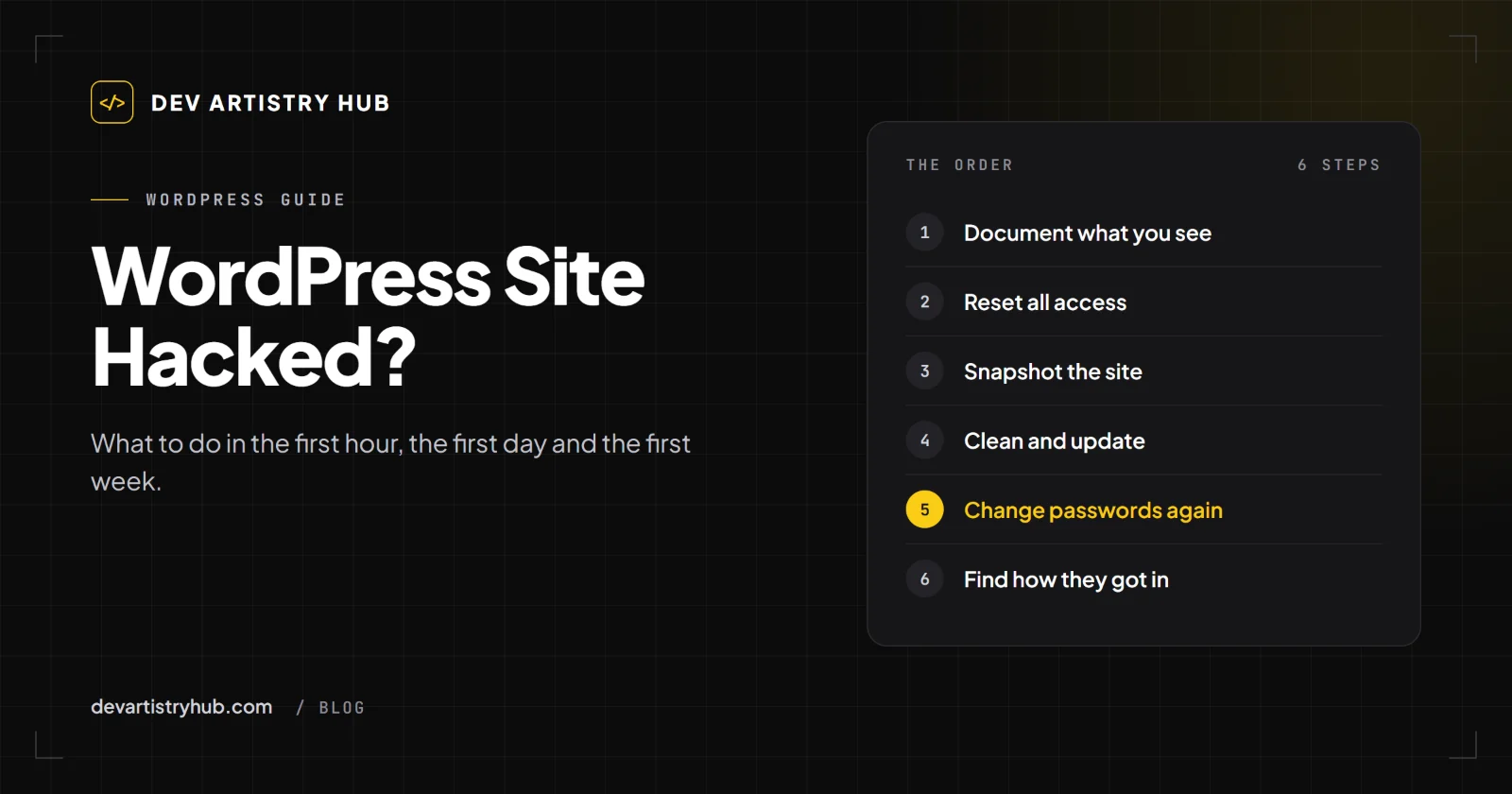
In short: confirm the signs, write down what you see, lock down access, take a snapshot of the infected site, then clean, update, change every password again, and find how they got in. Do not skip the last step.
Is My WordPress Site Hacked? The Signs
WordPress.org lists clear "Indicators of Compromise", including:
- the website is blacklisted by Google, Bing and others;
- your host has disabled the website;
- the website is flagged for distributing malware;
- visitors' antivirus software flags your site;
- you are told your site is being used to attack other sites;
- "behavior that was not authorized (i.e., creation of new users, etc…)";
- you can see the hack when you open the site.
Other common signs we see in practice: spam pages appearing in Google for your domain, redirects that happen only on phones or only from search results, and a sudden flood of outgoing spam email.
Not every problem is a hack. A white screen or a "critical error" is usually a plugin or PHP error, which we covered in common WordPress errors and how to fix them. WordPress.org notes that your host "might also be able to confirm if a hack is an actual hack or a loss of service."
The First Hour
1. Stay calm and document
WordPress.org's first actionable step is documentation: what you are seeing, what time you noticed it and in which time zone, and what changed recently. "Was a new plugin installed? Did you make a change to a theme?" This becomes your incident report, and it saves time for whoever cleans the site.
2. Tell your host
Especially on shared hosting, the hack may affect more than your site. Your host may already be acting, or may need to. Ask them for access logs from the last few weeks.
3. Reset all access
WordPress.org recommends locking things down "so that you can minimize any additional changes": force a password reset for all users, especially administrators, and log everyone out by replacing the secret keys in wp-config.php with new ones from the WordPress key generator.
Change every access point, not only WordPress: "FTP / SFTP, WP-ADMIN, CPANEL (or any other administrator panel you use with your host) and MYSQL."
4. Remove admin users you did not create
Check Users → All Users filtered by Administrator. Note any you do not recognise before deleting them; their creation date helps find the entry point.
The First Day
5. Take a snapshot of the infected site
This sounds backwards, but WordPress.org recommends it: "before you move into the next phase of cleaning, it is recommended you take one more snapshot of the environment. Even if it's infected." If cleaning goes wrong, you have a reference, and the infected files show how the attack worked.
6. Scan the site and your own computer
WordPress.org suggests both application scanners (plugins) and remote scanners, and notes that "no one solution is the best approach, but together you improve your odds greatly."
It also says to scan your local machine: "In many instances, the source of the attack / infection begins on your local box", where stolen FTP or admin logins come from.
7. Clean, or restore a clean backup
If you have a backup from before the hack, restoring it is often the fastest route, but only if you then close the hole they used. Otherwise:
- Replace
/wp-adminand/wp-includeswith fresh copies of the same WordPress version you run. WordPress.org warns that an older or newer version is "likely to kill your website", and recommends uploading by FTP/SFTP rather than the dashboard reinstall, because "hacks often introduce new files". - Check
.htaccess, which WordPress.org calls one of the files "most often updated and used for nefarious activities", including copies in sub-folders. - Check commonly modified files:
index.php,header.php,footer.phpand the theme'sfunctions.php. - Reinstall plugins and themes from their official sources. Delete any you do not use.
The First Week
8. Update everything
WordPress.org: "Once you are clean, you should update your WordPress installation to the latest software. Older versions are more prone to hacks than newer versions." Do the same for every plugin and theme.
9. Change the passwords again
This step is skipped all the time. "You need to change the passwords for your site after making sure your site is clean. So if you only changed them when you discovered the hack, change them again now." Consider changing the database user and password as well.
10. Find out how they got in
WordPress.org calls this forensics: "How did the attackers get in? The goal is to understand the attack vector a bad actor used to ensure they're unable to abuse it again." Common entry points include an outdated plugin, a nulled (pirated) premium plugin or theme, a reused password, and an infected computer used to log in.
11. Ask Google to review the site
If Google flagged the site, request a review in Google Search Console once it is clean. WordPress.org also recommends registering with Bing Webmaster Tools and other webmaster consoles.
12. Harden the site
Follow WordPress.org's hardening guide: long unique passwords, two-factor authentication for admins, fewer administrator accounts, regular updates, and off-site backups.
What Not to Do
- Do not only restore a backup without closing the hole. The same attack usually works again.
- Do not install a "nulled" premium plugin to replace a lost one. Pirated plugins are a well-known source of infections.
- Do not leave the infected site running for days while you decide. Visitors and your email reputation pay for it.
- Do not change only the WordPress password. Hosting, FTP and database access matter just as much.
How to Stop It Happening Again
The cheapest protection is boring: updates tested and applied every month, off-site backups you have actually restored once, and a small number of trusted plugins. If you do not have time for that, a WordPress maintenance plan covers it. Our One-off Fix is $80 for a single problem, and the Care Plan is $160 per month.
Frequently Asked Questions
How do I know if my WordPress site is hacked?
Look for WordPress.org's indicators: a blacklist warning, your host disabling the site, malware flags, antivirus warnings, unauthorised new users, or visible changes. Spam pages in Google for your domain and redirects on mobile are also common signs.
Can I fix a hacked WordPress site myself?
Often, if you are comfortable with FTP, files and the database, and follow the steps above in order. If you cannot find how they got in, get help, because that is what stops the hack returning.
Will restoring a backup remove the hack?
It removes the infected files, but not the weakness that let the attacker in. Update everything and change all passwords after restoring.
Why does my WordPress site keep getting hacked?
Usually because the entry point was never closed: an outdated or pirated plugin, a reused password, an infected computer, or a backdoor file that was missed during cleanup.
Final Takeaway
A hacked WordPress site is fixable. Document first, lock down access, snapshot, clean, update, change the passwords again, and find the way in. That last step is the one that decides whether you are writing this incident report again next month.
- #WordPress
- #Security
- #Troubleshooting