WordPress Guides
Does Elementor Slow Down WordPress? What Actually Makes Elementor Sites Slow (and When to Leave It)
Elementor rarely slows WordPress on its own. Learn how to measure the real cause, which Elementor settings help, and when a custom theme makes more sense.
Dev Artistry Hub10 min read
In this article — 8 sections
- What Elementor adds to every page (and what it doesn’t control)
- Measure before you blame the builder
- Seven things that actually slow Elementor sites down
- Elementor’s built-in performance settings
- Is Elementor bad for SEO?
- Free vs Pro: does Pro add weight?
- When to stop tuning and leave Elementor
- Frequently asked questions
Elementor adds some weight to every page, but on its own it rarely makes a WordPress site fail Core Web Vitals. Slow Elementor sites usually have several problems stacked on top of the builder: deeply nested layouts, two or three add-on widget packs, a heavy slider or background video in the hero, and hosting with no page cache. Fix those first. If the key pages still fail on mobile after that, it’s time to think about a custom theme.
Bottom line up front: Measure with real-user data, check server response time, then count DOM nodes. If the server is slow, the fix is hosting and caching, not a rebuild. If the DOM is huge and add-ons are everywhere, clean up inside Elementor. Rebuild only when a cleaned-up site still fails on the templates that make you money.
What Elementor adds to every page (and what it doesn’t control)
A page builder has to turn drag-and-drop settings into HTML, CSS and JavaScript. That conversion has a cost:
- Extra wrapper elements. Every widget sits inside builder markup. Older layouts built with sections, columns and inner sections add more layers on top. Elementor’s own help centre says switching to Flexbox containers “can drastically improve your performance” because the result “contains far fewer dividers” and “improves the DOM load on the page.”
- Its own CSS and JavaScript. Frontend scripts, per-page CSS and, unless you change a setting, full icon libraries such as Font Awesome.
- Externally loaded fonts. Google Fonts are requested from Google’s servers unless you turn on local loading. Since Elementor 3.32.1 that option is off by default.
What Elementor does not control: how fast your server answers, how large your images are, how many other plugins load scripts on every page, and the chat widget, pixel and popup tools added over the years. Those are often the bigger share of the problem.
Measure before you blame the builder
Guessing leads to the wrong fix. Spend 20 minutes on these four checks before you change anything.
1. Look at field data, not just the lab score. Run the page through PageSpeed Insights. The top section shows data from real Chrome users, if your site has enough traffic. Google’s targets are LCP under 2.5 seconds, INP under 200 milliseconds and CLS under 0.1, measured at the 75th percentile of visits. A lab score of 45 with passing field data is not an emergency. Failing field data is.
2. Check server response time (TTFB). In the PageSpeed report or Chrome DevTools (Network tab, then the document request, then Timing), see how long the server takes before sending the first byte. If that number alone is close to a second, no builder setting will save you. The issue is hosting, PHP workers or missing page cache.
3. Count DOM nodes. Lighthouse warns when the body holds more than about 800 nodes and flags an error above about 1,400. In Lighthouse 13 this check appears as the “Optimize DOM size” insight. You can also type document.querySelectorAll('*').length in the DevTools console for a rough count. Elementor pages built on old sections often land well past the error line.
4. Isolate on staging. Copy the site to staging and use the official Health Check & Troubleshooting plugin. Its troubleshooting mode turns plugins off for your session only, so visitors are not affected. Switch off add-on packs one at a time and re-test. Then build one simple Gutenberg page with the same text and hero image on the same server. That page is your baseline: the gap between it and the Elementor version is roughly what the builder plus its add-ons cost you.
| What you see | Most likely cause | Where to look first |
|---|---|---|
| Slow TTFB on every page | Hosting, no page cache | Host plan, caching plugin or server cache |
| Poor LCP, fine TTFB | Hero image, slider or background video | Hero section media and how it loads |
| Poor INP | Too much JavaScript: add-ons, popups, third-party tags | Add-on packs, chat and tracking scripts |
| High CLS | Fonts swapping, entrance animations, late banners | Font loading, motion effects, cookie bars |
| DOM size error | Nested sections and inner sections | Page structure (Navigator panel) |
Seven things that actually slow Elementor sites down
1. Layouts nested five levels deep
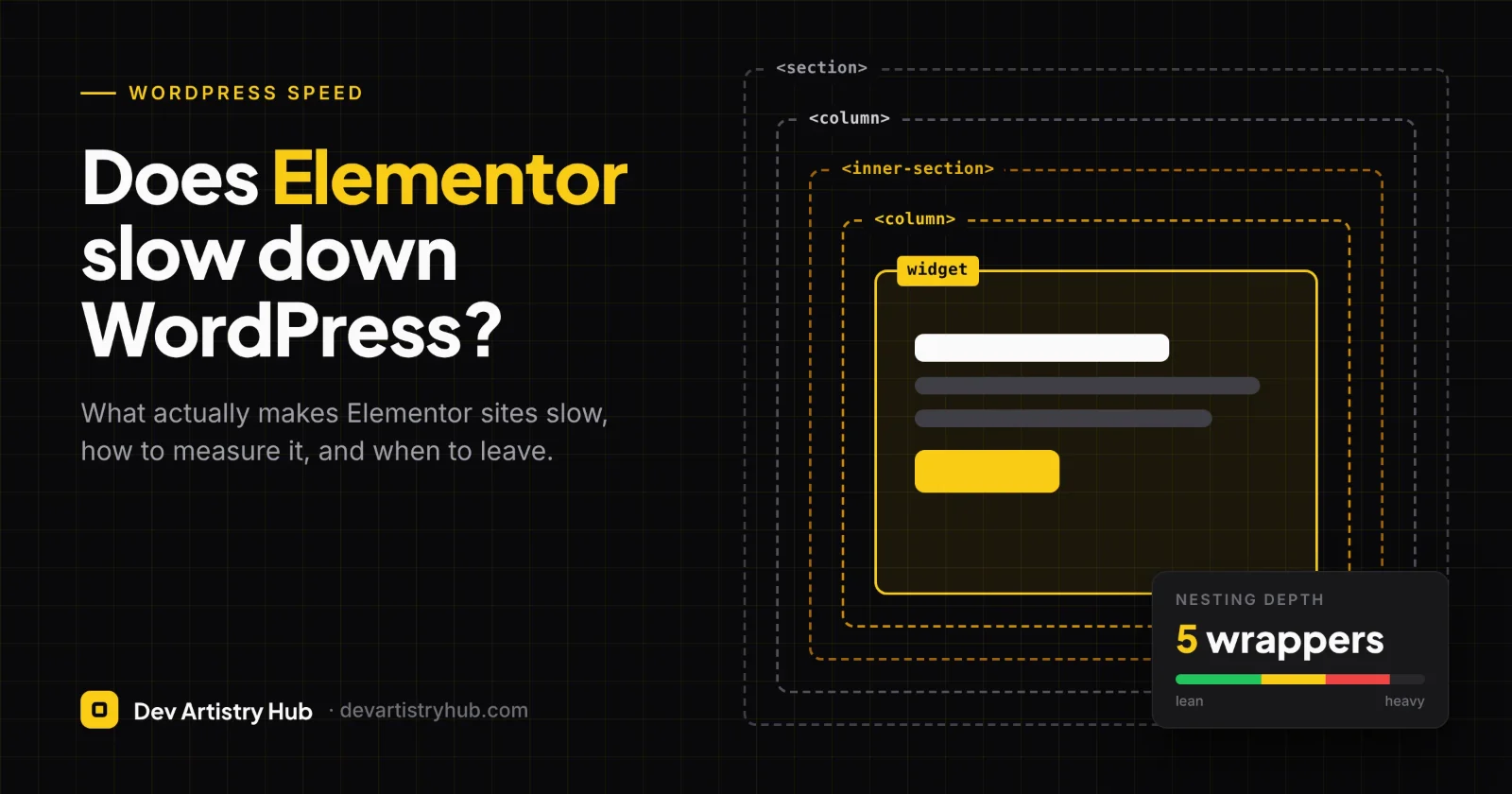
The classic pattern is a section, then a column, then an inner section, then another column, then the widget. Repeat that for every row on a long landing page and the DOM grows fast. A large DOM makes the browser work harder for styling, layout and every interaction, which shows up in INP.
Fix: Build new pages with Flexbox containers. For old pages, Elementor has a converter that creates a container copy below the original section so you can compare them. Its help centre warns that conversion can leave unnecessary containers behind and that a converted page cannot go back to sections. Convert one section at a time, delete the extra wrappers in the Structure panel, and rebuild your header, footer and main templates by hand if the converted versions stay messy.
2. Add-on packs stacked on top of each other
Many sites run Elementor Pro plus two or three add-on packs, each bringing its own CSS and scripts. Some load those files on every page, even where none of their widgets are used.
Fix: Pick one add-on pack, if you need one at all. In its settings, switch off every widget you don’t use; most packs have a widget manager for this. Replace one-off widgets (a single countdown timer, one pricing table) with the core equivalent or a small piece of custom code.
3. A hero that fights the LCP
The largest element in the first screen is usually your LCP element. On Elementor sites it is often a full-width background image set in CSS, a three-slide carousel or an autoplay background video. A CSS background image is discovered later than a normal <img>, and a slider adds JavaScript before anything appears.
Fix: Use one static hero image placed with the Image widget, sized for the layout and served as WebP or AVIF. Elementor’s Optimized Image Loading feature gives LCP images high fetch priority and lazy-loads images further down. That only helps if the hero is a real image, not a background. Drop the slider on mobile at minimum.
4. Fonts and icon libraries
Four font families with six weights each, loaded from Google’s servers, plus the full Font Awesome library for three icons. Each adds requests and can cause text to jump when fonts swap in.
Fix: Limit the site to two families and only the weights you use. Turn on Load Google Fonts Locally and Inline Font Icons. The second renders icons as inline SVG, so the icon font files and their CSS no longer load.
5. Hosting and caching
Elementor builds pages with PHP and database queries. On a cheap shared plan without page caching, every visit pays that cost again. This is the most common reason TTFB is high.
Fix: Put a full-page cache in front of the site (server-level or a caching plugin) and choose hosting with enough PHP workers for your traffic. Elementor also offers Element Caching, which stores each widget’s rendered HTML so it isn’t rebuilt on every load; Elementor says this reduces server memory use and TTFB. It is still listed as experimental, and it can’t be used on widgets with dynamic tags, such as content personalised for the visitor. Test it on staging first.
6. Third-party scripts
Live chat, Meta and TikTok pixels, heatmaps, review badges and two analytics tags. None of them are Elementor, but they load on Elementor pages and are a common cause of poor INP.
Fix: List every script in the page source and remove anything nobody checks. Load the rest through one tag manager and delay non-essential tags until the visitor interacts, where your consent setup allows it.
7. Motion effects and entrance animations
Fade-in-up on every heading, parallax backgrounds and sticky effects all need JavaScript, and content that animates in after load can add to CLS.
Fix: Keep animation for one or two moments on a page, never above the fold, and switch motion effects off on mobile.
Elementor’s built-in performance settings
You’ll find these under Elementor → Settings, in the Performance and Features tabs. Names and locations change between versions, so check your own install.
| Setting | What it does | Watch out for |
|---|---|---|
| Optimized Image Loading | Sets high fetch priority on the LCP image and lazy-loads images below the fold | Doesn’t help CSS background heroes |
| Lazy Load Background Images | Lazy-loads background images except the first one | Check that above-the-fold backgrounds still appear quickly |
| Optimized Gutenberg Loading | Removes block editor scripts and styles the page doesn’t use | Test pages that mix blocks and Elementor |
| Inline Font Icons | Renders icons as inline SVG instead of loading icon fonts | Custom icon CSS may need adjusting |
| Load Google Fonts Locally | Serves Google Fonts from your own server | Off by default since 3.32.1; re-enable after updating |
| Element Caching | Stores rendered widget HTML to cut server work | Experimental; not for widgets with dynamic tags |
| Flexbox / Grid containers | Leaner layout markup than sections and columns | Converting old pages is one-way |
Is Elementor bad for SEO?
Google doesn’t rank pages by the tool that built them. It ranks content, and Core Web Vitals are one of the signals its ranking systems use. Google’s own guidance says it “always seeks to show the most relevant content, even if the page experience is sub-par.” Speed matters most when several pages answer a query equally well.
The SEO problems on Elementor sites are usually editorial, not technical:
- Headings chosen for looks. The Heading widget lets you pick any tag, so pages end up with five H1s or H2s used as small labels. Set heading levels by structure and style them separately.
- Text inside images. Hero headlines baked into a banner image can’t be read as text. Keep headlines as live text.
- Thin template pages. Theme Builder makes it easy to publish many near-identical pages. Make sure each page has a reason to exist.
Free vs Pro: does Pro add weight?
Pro adds the Theme Builder, popups, forms, motion effects and more widgets. The features you actually use are what add weight, not the licence itself. A Pro site that uses Theme Builder for its header and footer can be leaner than a free site that adds a separate header plugin and a popup plugin to get the same result. Where Pro sites do get heavy is when every popup, animation and sticky effect gets switched on because it’s available.
When to stop tuning and leave Elementor
After the clean-up above, test the pages that matter most: home, main service or category pages and checkout. Then use this rule.
Stay on Elementor when:
- Field data passes, or misses by a small margin you can close with images and caching.
- Your team edits pages every week and doesn’t want to wait on a developer for each change.
- The site is mostly marketing pages that change often.
Move to a custom theme when:
- Key templates still fail LCP or INP on mobile after hosting, caching and layout fixes.
- Most of your content is structured and repeats (products, posts, locations), so drag-and-drop flexibility isn’t used.
- You are paying for several add-on licences to fill gaps a custom build would cover.
- A redesign is already planned. Rebuilding then costs far less than rebuilding twice.
The middle path: A custom block theme for the templates that carry traffic and revenue, with Elementor kept only for a handful of campaign landing pages. Elementor works page by page, so both can run on one site while you move over gradually.
One warning before leaving: content built in Elementor doesn’t carry over neatly to another theme or the block editor. Plan a page inventory and a redirect check, the same way you would for a website redesign.
Frequently asked questions
Does Elementor slow down WordPress if I only use it on a few pages?
Its frontend assets load mainly where it’s used, so a few Elementor pages won’t slow down the rest of a site built another way. Site-wide add-ons and Theme Builder templates are the exception, because they appear on every page.
Is Elementor slower than Gutenberg?
A page built with core blocks usually produces less markup and fewer scripts than the same layout in Elementor. How much that matters depends on hosting, images and plugins, which is why the staging comparison above is the fairest test.
Will a caching plugin fix a slow Elementor site?
It fixes server response time, which is often the biggest single gain. It won’t fix a huge DOM, a slider hero or heavy JavaScript, so LCP and INP can still fail on mobile.
How often should I re-check speed?
After every major Elementor update, new add-on or redesign, and about once a quarter otherwise. Updates change defaults; the Google Fonts setting turning off in 3.32.1 is one example. Ongoing WordPress maintenance should include this check.
Not sure whether to tune or rebuild? Send us the URL of the page that matters most. Dev Artistry Hub’s WordPress development team can measure it with real-user data, find what is actually slowing it down, and tell you plainly whether a clean-up inside Elementor will get you there or a custom theme is the better spend. Share the slow page.
- #WordPress
- #Elementor
- #Performance