WordPress Guides
Common WordPress Errors and How to Fix Them: A Safe, Step-by-Step Guide
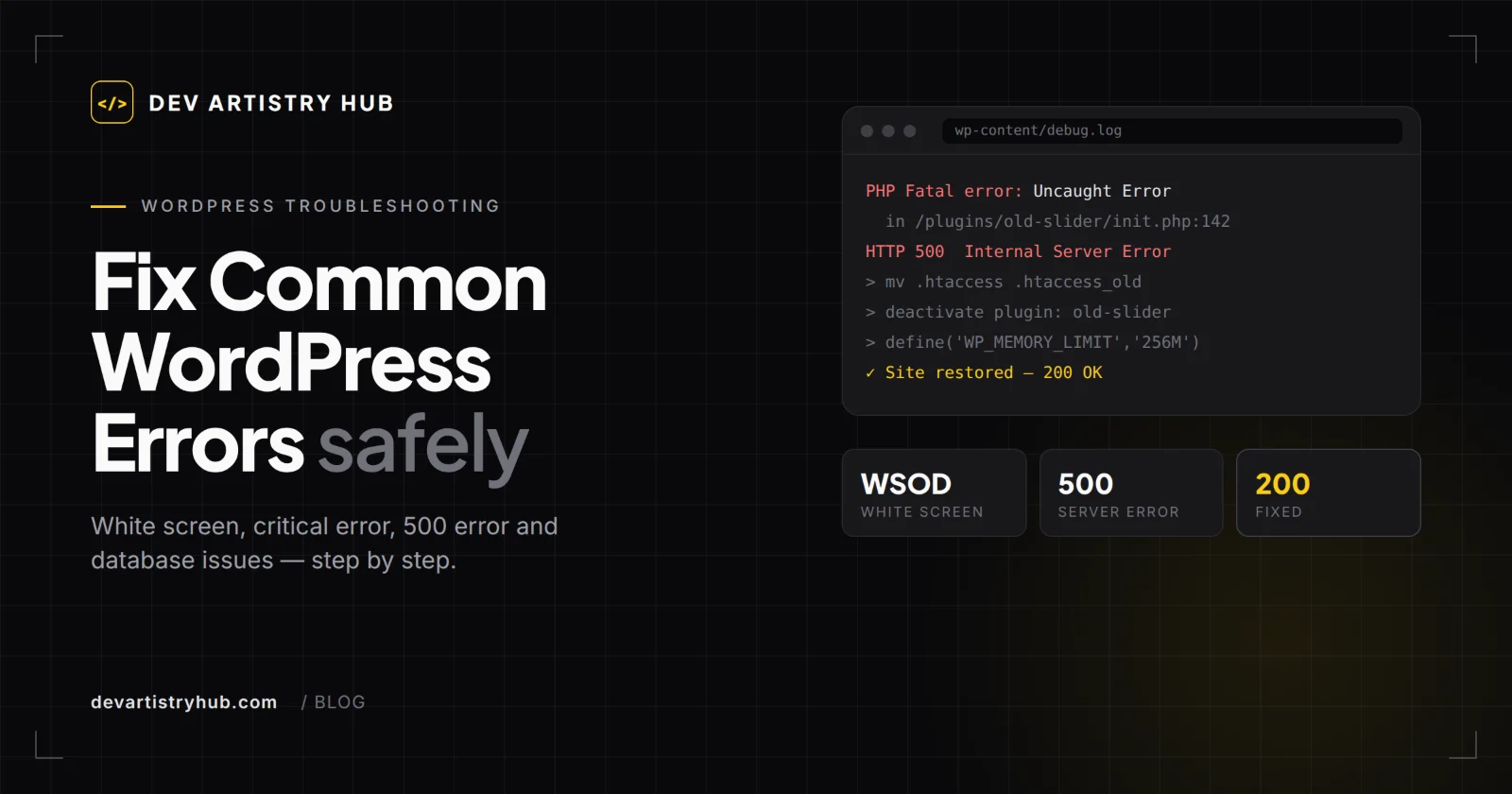
White screen, critical error, 500 error or database connection problems? Fix the most common WordPress errors step by step, safely, with this 2026 guide.
Dev Artistry Hub10 min read
In this article — 16 sections
- Before You Fix Anything: 4 Safety Steps
- Quick Reference: WordPress Errors by Symptom
- 1. The White Screen of Death (WSOD)
- 2. “There Has Been a Critical Error on This Website”
- 3. 500 Internal Server Error
- 4. Error Establishing a Database Connection
- 5. Plugin and Theme Conflicts
- 6. Allowed Memory Size Exhausted
- 7. WordPress Stuck in Maintenance Mode
- 8. 404 Errors on Posts and Pages
- 9. Elementor and WooCommerce Problems
- How to Prevent WordPress Errors
- When to Call a WordPress Developer
- Frequently Asked Questions
- Conclusion: Fix the Cause, Not Just the Symptom
- Sources
Few things are more stressful than opening your website and seeing a blank white page, a “critical error” message, or a server error where your homepage should be. If customers are trying to reach you, every minute counts.
The good news: most WordPress errors have a small number of causes, and they follow recognizable patterns. A plugin update clashes with your theme. A PHP version changes on the server. The site runs out of memory. A configuration file gets damaged during a migration. Once you know which symptom points to which cause, the fix is usually straightforward.
This guide walks through the most common WordPress errors, what each one means, and how to fix it safely — in the right order, so you do not make the problem worse. It is based on the official WordPress Advanced Administration Handbook, plus practical notes for Elementor and WooCommerce sites. You will also learn how to prevent these errors and when a WordPress bug fix is better handed to a developer.
Before You Fix Anything: 4 Safety Steps
Rushing into fixes is how a small problem becomes a lost website. Take five minutes for these first.
- Back up files and database. Use your host’s backup tool or a backup plugin if the dashboard still works. If not, download
wp-contentand export the database through phpMyAdmin or your hosting panel. - Check your admin email. When a fatal error happens, WordPress often emails the site admin with the plugin or theme that caused it and a special recovery mode login link. That link lets you log in and deactivate the faulty plugin without touching code.
- Note what changed recently. A plugin update, a new theme, a PHP upgrade, a migration or a code snippet added to
functions.phpis usually the trigger. - Turn on the debug log. Add these lines to
wp-config.php(above the line that says “That’s all, stop editing”) so errors are written towp-content/debug.loginstead of shown to visitors:
define( 'WP_DEBUG', true );
define( 'WP_DEBUG_LOG', true );
define( 'WP_DEBUG_DISPLAY', false );
The log usually names the exact file and line causing the error. Remember to switch WP_DEBUG back to false once the site is fixed. See the official guide to debugging in WordPress for more options.
Quick Reference: WordPress Errors by Symptom
| What you see | Most likely cause | First fix to try |
|---|---|---|
| Blank white page | Plugin or theme PHP error, memory limit | Deactivate plugins, then switch to a default theme |
| “There has been a critical error on this website” | Fatal PHP error | Use the recovery mode email, then check debug.log |
| 500 Internal Server Error | Corrupted .htaccess, plugin, memory | Rename .htaccess and reset permalinks |
| “Error establishing a database connection” | Wrong wp-config.php details, database server down | Check database name, user, password and host |
| “Briefly unavailable for scheduled maintenance” | Interrupted update | Delete the .maintenance file |
| “Allowed memory size exhausted” | PHP memory limit too low | Raise the memory limit |
| Pages return 404 but the homepage works | Rewrite rules not flushed | Re-save permalinks |
| Changes do not show up | Browser, plugin or server cache | Clear all caches |
1. The White Screen of Death (WSOD)
A completely blank page — sometimes only on the front end, sometimes in the admin too — is known as the White Screen of Death. According to the WordPress handbook, both PHP errors and database errors can produce it, and plugins and themes are the usual culprits.
How to Fix It
- If you can reach the dashboard, deactivate all plugins, then reactivate them one by one until the white screen returns. The last plugin you activated is the cause.
- If you cannot log in, connect via FTP or your host’s file manager, open
wp-content, and rename thepluginsfolder toplugins_old. This deactivates every plugin at once. If the site loads, rename the folder back and disable plugins individually by renaming each one’s folder. - Test the theme. If plugins are not the problem, switch to a default WordPress theme. Without dashboard access, rename your active theme’s folder inside
wp-content/themes. - Check the debug log for the exact file and line.
2. “There Has Been a Critical Error on This Website”
This message is WordPress catching a fatal PHP error instead of showing a blank screen. The WordPress handbook lists the most common causes as plugin conflicts, theme compatibility issues, an incompatible PHP version, hitting the memory limit, or corrupted core files.
How to Fix It
- Open the email WordPress sent to the admin address and use the recovery mode link to log in.
- Deactivate the plugin or theme named in the email.
- If there is no email, enable the debug log as shown above and read
wp-content/debug.log. - If the error started after a PHP upgrade, update the plugin or theme, or ask your host to temporarily roll back the PHP version while the code is updated. WordPress.org currently recommends PHP 8.3 or newer; older plugins that have not been maintained are the usual source of PHP compatibility errors.
3. 500 Internal Server Error
A 500 error means the server hit a problem it could not describe more precisely. The handbook names a corrupted .htaccess file as the most likely cause.
How to Fix It
- Rename
.htaccessin your site root to.htaccess_oldand reload the site. - If the site works, go to Settings > Permalinks and click Save to generate a fresh
.htaccessfile. - If not, deactivate plugins and switch to a default theme as described above.
- Raise the PHP memory limit (see section 6).
- As a last resort, re-upload the
wp-adminandwp-includesfolders from a fresh copy of WordPress. Do not overwritewp-contentorwp-config.php.
A clean default .htaccess for a standard WordPress install on Apache looks like this:
# BEGIN WordPress
<IfModule mod_rewrite.c>
RewriteEngine On
RewriteBase /
RewriteRule ^index\.php$ - [L]
RewriteCond %{REQUEST_FILENAME} !-f
RewriteCond %{REQUEST_FILENAME} !-d
RewriteRule . /index.php [L]
</IfModule>
# END WordPress
4. Error Establishing a Database Connection
WordPress cannot talk to its database. This often appears right after a migration or a hosting change.
How to Fix It
- Open
wp-config.phpand checkDB_NAME,DB_USER,DB_PASSWORDandDB_HOSTagainst the details in your hosting panel. One wrong character is enough to break the connection. - If the details are correct, contact your host. The database server may be down, or your account may have hit a database quota.
- If neither explains it, scan the site for malware. A compromised site can also cause this error.
- For corrupted tables, back up the database first, then use the repair option in phpMyAdmin or ask your host to run a check and repair.
5. Plugin and Theme Conflicts
Conflicts are among the most frequent causes of WordPress errors. They happen when two plugins load incompatible code, a plugin is out of date for your WordPress or PHP version, or JavaScript or jQuery errors break the page in the browser.
How to Find the Culprit Without Taking the Site Down
- Use the official Health Check & Troubleshooting plugin. Its troubleshooting mode disables plugins and switches to a default theme for your session only, so visitors still see the live site.
- Open your browser’s developer console (F12) to spot JavaScript errors that break sliders, menus, forms or Elementor widgets.
- Test updates on a staging site first. Most managed hosts offer one-click staging.
6. Allowed Memory Size Exhausted
This error means PHP ran out of memory while loading a page — common with page builders, WooCommerce and large imports.
How to Fix It
Add this line to wp-config.php:
define( 'WP_MEMORY_LIMIT', '256M' );If the error continues, your host’s PHP limit may be lower than what WordPress requests. Ask your hosting provider to increase memory_limit in php.ini. If the same plugin keeps exhausting memory, the plugin itself may be the real problem.
7. WordPress Stuck in Maintenance Mode
If you see “Briefly unavailable for scheduled maintenance. Check back in a minute” long after an update, WordPress did not finish cleaning up. Connect via FTP or your file manager and delete the .maintenance file in your site root. Then check that the plugin or core update actually completed, and re-run it if needed.
8. 404 Errors on Posts and Pages
When the homepage loads but every post or page returns a 404, the rewrite rules usually need flushing. Go to Settings > Permalinks and click Save without changing anything. If that fails, check that your .htaccess file matches the default above, or ask your host to confirm mod_rewrite is enabled. For custom post types, make sure no page shares the same slug as the post type.
9. Elementor and WooCommerce Problems
Page builder and eCommerce sites have a few extra failure points:
- Elementor editor will not load: usually a memory limit, a plugin conflict, or a security or caching plugin blocking the editor. Raise memory, test in troubleshooting mode, and exclude the editor from caching.
- Styling broken after an update: regenerate CSS files from Elementor’s tools, then clear all caches.
- WooCommerce checkout errors: check payment gateway logs under WooCommerce > Status > Logs, confirm the cart and checkout pages are excluded from caching, and test with only WooCommerce and the gateway active.
How to Prevent WordPress Errors
Most emergencies are avoidable with a basic maintenance routine:
- Keep automatic, off-site backups and test a restore at least once.
- Update on a staging copy first, especially major plugin, theme and PHP updates.
- Remove plugins you no longer use, and avoid abandoned ones that have not been updated in a long time.
- Never edit theme files directly. Use a child theme or a code snippets plugin for custom PHP, CSS or JavaScript.
- Keep PHP on a supported version and check plugin compatibility before upgrading.
- Monitor uptime so you hear about a problem before your customers do.
When to Call a WordPress Developer
DIY fixes are reasonable when the cause is clear and you have a backup. Bring in a developer when:
- The debug log points to custom code you do not understand.
- The site was hacked or shows signs of malware.
- The database needs repair and you are unsure what you are doing.
- WooCommerce orders or payments are affected.
- The same error keeps returning after every update.
A developer will usually work on a staging copy, trace the root cause in the logs, and fix the underlying code rather than just disabling features.
Frequently Asked Questions
Why is my WordPress site showing a blank white page?
A blank page usually means a PHP error from a plugin or theme, or the site running out of memory. Deactivate plugins (rename the plugins folder via FTP if you cannot log in), switch to a default theme, and check wp-content/debug.log for the exact cause.
What does “There has been a critical error on this website” mean?
WordPress hit a fatal PHP error and stopped loading the page safely. Check the site admin’s email for a recovery mode link, which lets you log in and deactivate the plugin or theme responsible.
Will deactivating plugins delete my content or settings?
No. Deactivating a plugin does not delete your posts or pages, and most plugins keep their settings when reactivated. Deleting a plugin is different, so deactivate rather than delete while troubleshooting.
Can a PHP update break my WordPress site?
Yes. If a plugin or theme uses code that newer PHP versions no longer support, it can trigger critical errors after an upgrade. Update your plugins and themes first, and test the new PHP version on a staging site.
How do I fix WordPress if I am locked out of the dashboard?
Use your host’s file manager or an FTP client. You can deactivate plugins by renaming folders, switch themes by renaming the active theme folder, edit wp-config.php and delete a stuck .maintenance file — all without the dashboard.
Is it safe to fix WordPress errors myself?
For common, clearly identified issues, yes — as long as you have a fresh backup and change one thing at a time. If the problem involves malware, database repair, custom code or broken checkout payments, a developer is the safer choice.
Conclusion: Fix the Cause, Not Just the Symptom
Most WordPress errors come down to a handful of causes: plugin or theme conflicts, PHP version and memory limits, configuration files, and interrupted updates. Start with a backup, read the recovery email and debug log, then work through the fixes for your specific symptom. In most cases your site will be back online quickly.
The long-term fix is prevention: staging before updates, fewer and better-maintained plugins, a supported PHP version and regular backups. If you are still choosing a platform for a new project, our guide to WordPress vs Shopify vs custom development can help.
Site still down, or the same error keeps coming back? Dev Artistry Hub offers WordPress bug fix and maintenance support for businesses worldwide. Send us a description of the error and what changed before it started.
Sources
WordPress Advanced Administration Handbook: Common WordPress errors; Debugging in WordPress; WordPress.org requirements; Learn WordPress: Troubleshooting plugin and theme conflicts.
- #WordPress
- #Bug Fix
- #Troubleshooting